For the complete documentation index, see llms.txt. This page is also available as Markdown.

Google Org-wide Email / Calendar Integration

Enable Google Workspace connectivity for Rox, allowing IT administrators to authorize to securely access calendar and email data on behalf of all users within their Workspace.

This guide explains how you, the admin, can connect email and calendars of all Users on Rox, the two supported architectures, and how Rox keeps data fresh.

Architecture

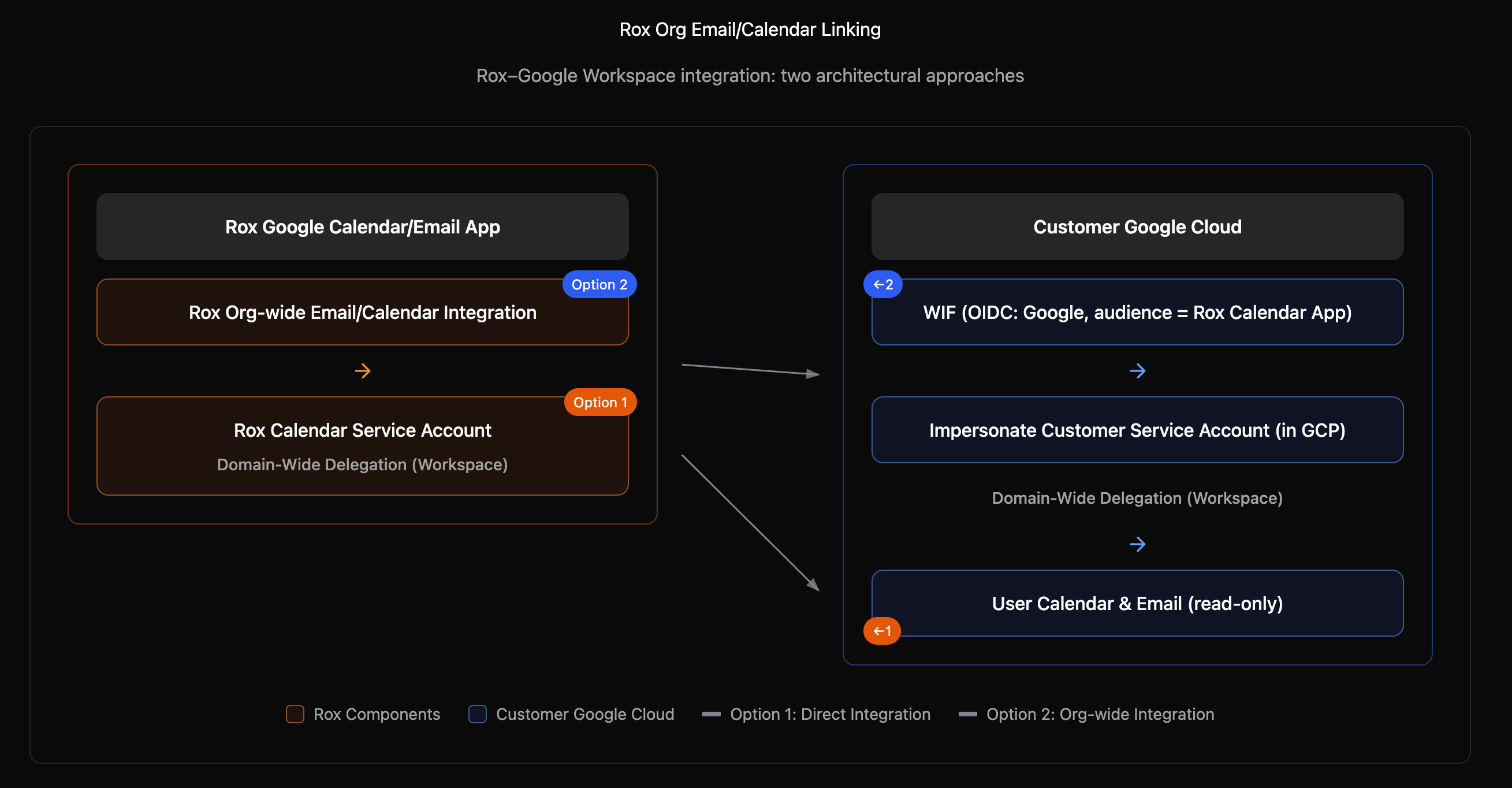
Rox supports two secure patterns. Choose one based on your governance needs.

The main difference is who owns and manages the Workload Identity Pool.

Option 1: Using Rox Workload Identity Pool (Preferred)

In this model, Rox owns and manages the Workload Identity Pool, and the customer only needs to:

  • Configure Domain-Wide Delegation in Google Workspace and grant access to Rox’s Service account

    • Rox Service Account ID: 117867966423712400255

When to choose this

  • Fastest and simplest setup

  • Minimal ongoing maintenance

  • Recommended for most customers

Required configuration values - Contact the Rox Admin to get the required configuration values like Project Number, Service Account ID, etc.

Option 2: Customer-Managed Identity Pool (Advanced / More Control)

In this model, the customer creates and manages their own Workload Identity Pool and Provider inside their GCP project. Rox then federates with that customer-owned configuration.

When to choose this

  • Strict security or compliance requirements

  • Desire for full control over identity trust configuration

  • Centralized IAM management across internal systems

Workload Identity Federation + Service Account Setup Guide

Below guide explains how Google Workspace administrators can securely grant a third-party application access to Google Workspace APIs using Workload Identity Federation (WIF) — without using long-lived service account keys.

By the end of this guide, you will have:

  • A Workload Identity Pool

  • An OIDC Provider inside that pool

  • A Service Account that can be impersonated

  • Proper IAM permissions (Token Creator + WIF access)

  • The Service Account Unique ID required for Domain-Wide Delegation


Prerequisites

  • Google Cloud project admin access

  • Google Workspace admin access

  • IAM permissions:

    • Workload Identity Pool Admin

    • Service Account Admin

    • Organization Policy Viewer (recommended)


Step 1: Create a Workload Identity Pool

Google Cloud Console (UI)

  1. Open Google Cloud Console

  2. Go to IAM & Admin → Workload Identity Federation

  3. Click Create Pool

  4. Enter:

    • Name: rox-workspace-oauth-pool

    • Display name: Rox Workspace OAuth Pool

    • Location: Global

  5. Click Create

Equivalent gcloud command


Step 2: Add an OIDC Provider to the Pool

This provider trusts Google OAuth tokens (accounts.google.com) and maps the subject claim.

Google Cloud Console (UI)

  1. Open IAM & Admin → Workload Identity Federation

  2. Select calendar-oauth-pool

  3. Click Add Provider

  4. Choose OIDC

  5. Configure:

    • Provider name: google-oauth-provider

    • Display name: Google OAuth Provider

    • Issuer URL:

    • Attribute mapping:

  6. Under Advanced settings, set the Allowed audiences:

    • Click Add audience

    • Enter your Google OAuth Client ID:

    35198670449-4i2f1ldthiscv0t6j7akqtak9mc1gb1o.apps.googleusercontent.com

  7. Save the provider

Equivalent gcloud command


Step 3: Create a Service Account

This service account will be impersonated by the workload identity and used to access Google Workspace APIs.

Google Cloud Console (UI)

  1. Go to IAM & Admin → Service Accounts

  2. Click Create Service Account

  3. Enter:

    • Name: rox-workspace-sa

    • Display name: Rox Workspace Service Account

  4. Click Create

  5. Skip optional role assignment for now

Equivalent gcloud command


Step 4: Allow the Workload Identity Pool to Impersonate the Service Account

This step enables Workload Identity Federation to act as the service account.

Google Cloud Console (UI)

  1. Go to IAM & Admin → Service Accounts

  2. Open calendar-reader-sa

  3. Go to the Permissions tab

  4. Click Grant Access

  5. Add:

    • Principal:

    • Role:

      Workload Identity User

Equivalent gcloud command


Step 5: Ensure Token Creator Permission Is Granted

The caller that generates access tokens must have Service Account Token Creator permissions.

⚠️ Without this, token generation will fail with 403 Forbidden.

Google Cloud Console (UI)

  1. Open rox-workspace-sa

  2. Click Grant Access

  3. Add the identity that will mint tokens (for example, another service account or workload identity principal)

  4. Assign role:

    • Service Account Token Creator

Equivalent gcloud command (example)


Step 6: Retrieve the Service Account Unique ID (Required for Domain-Wide Delegation)

Google Workspace Domain-Wide Delegation requires the numeric Service Account Unique ID, not the email.

Google Cloud Console (UI)

  1. Go to IAM & Admin → Service Accounts

  2. Open rox-workspace-sa

  3. Copy the Unique ID

Equivalent gcloud command

📌 Save this value — you will need it in the Admin Console.


Step 7: Configure Domain-Wide Delegation in Google Workspace

Google Workspace Admin Console (UI)

  1. Navigate to:

  2. Click Add new

  3. Enter:

    • Client ID:

      👉 Paste the Service Account Unique ID

    • OAuth Scopes:

      Example:

  4. Click Authorize


Final Checklist

✅ Workload Identity Pool created

✅ OIDC Provider configured

✅ Service Account created

✅ Workload Identity User role granted

✅ Service Account Token Creator granted

✅ Service Account Unique ID added to Domain-Wide Delegation

Common Errors & Fixes

Error
Cause
Fix

403 Forbidden: generateAccessToken

Missing Token Creator role

Grant roles/iam.serviceAccountTokenCreator

Invalid audience

Provider misconfigured

Check issuer URL and pool name

Workspace API access denied

Missing DWD scopes

Recheck scopes in Admin Console


How Rox Syncs

  • Rox fetches Calendar events (and Email, if enabled) every 15 minutes.

  • Credentials are refreshed automatically before expiry (WIF assertion or refresh token, depending on your architecture).

  • Syncs are incremental to minimize API usage and latency.

Permission Scopes

Requested permission scopes depend on the type of integration your organization chooses to go for - read-only or read-write. You can choose the scope individually for email and calendar.

Target
Access level
Requested permissions
What gets enabled

Calendar

Read-Only

Read access to users’ calendars for meeting insights and scheduling automation

Calendar

Read-Write

Read and write access to users’ calendars for meeting insights and scheduling automation

Gmail

Read-Only

Read access to email subject and email metadata (and optionally email content) in users’ mailboxes for syncing communications to Rox.

Gmail

Read-Write

Read access & write access to users' mailboxes and ability to send

Security

  • Least-privilege by default (read-only scopes).

  • For Option B, Rox uses short-lived federated credentials; no long-lived keys are stored by Rox.

  • You can revoke access centrally (remove DWD, disable the WIF binding, or disconnect in Rox).

Admin steps to follow

  1. Decide between the two options stated above.

  2. Implement the chosen option in Google Workspace.

  3. Go to Rox to finish the setup using the steps below.

Steps for setup in Rox

  1. Go to Settings > Integrations page

  2. Click the Connect button for Google Workspace

  3. Select the sync level for Calendar, and click Next

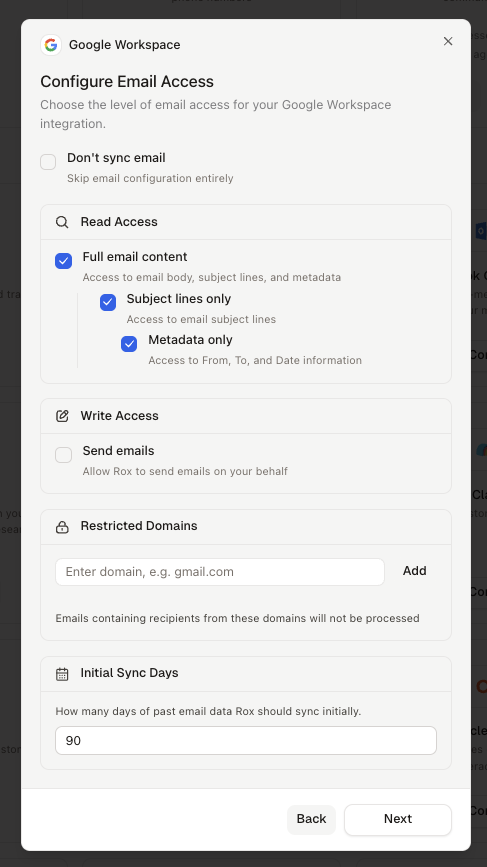
  1. Select the sync level for Email, any email domains that you want to restrict from indexing and the number of past days that you want to sync the data for.

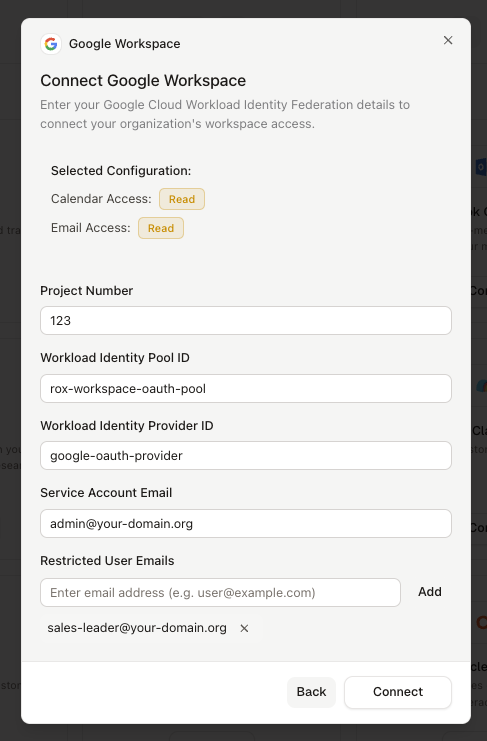
  1. Enter the details from the Google Workspace. Optionally, you can restrict Rox from syncing the data of particular users

  1. Click on Connect. You will be taken to the Google authorization page. Please authorize the operation.

  2. You will be re-directed to Rox and you will be able to see the Google Workspace integration is live.

Last updated