Voice Mode
Talk with Rox and complete work hands-free
Voice Mode lets you talk with Rox directly in Chat. Rox listens to your request, uses the context available in the conversation, and responds out loud while keeping the work visible in the chat panel.

Start a voice session
Open Chat or open the Chat panel from another Rox view.
Select any accounts or other context you want Rox to use.
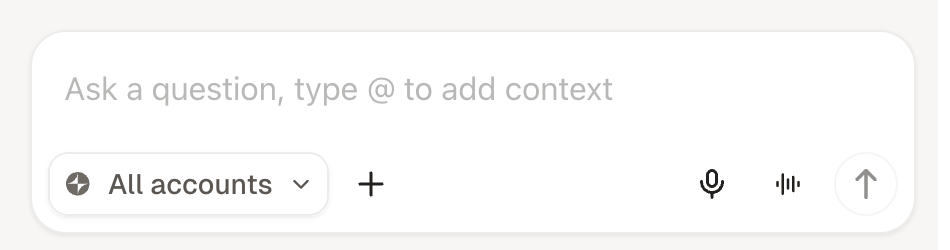
Click the waveform button in the chat composer.
Allow microphone access when your browser asks for permission.
Start speaking when Rox is listening.
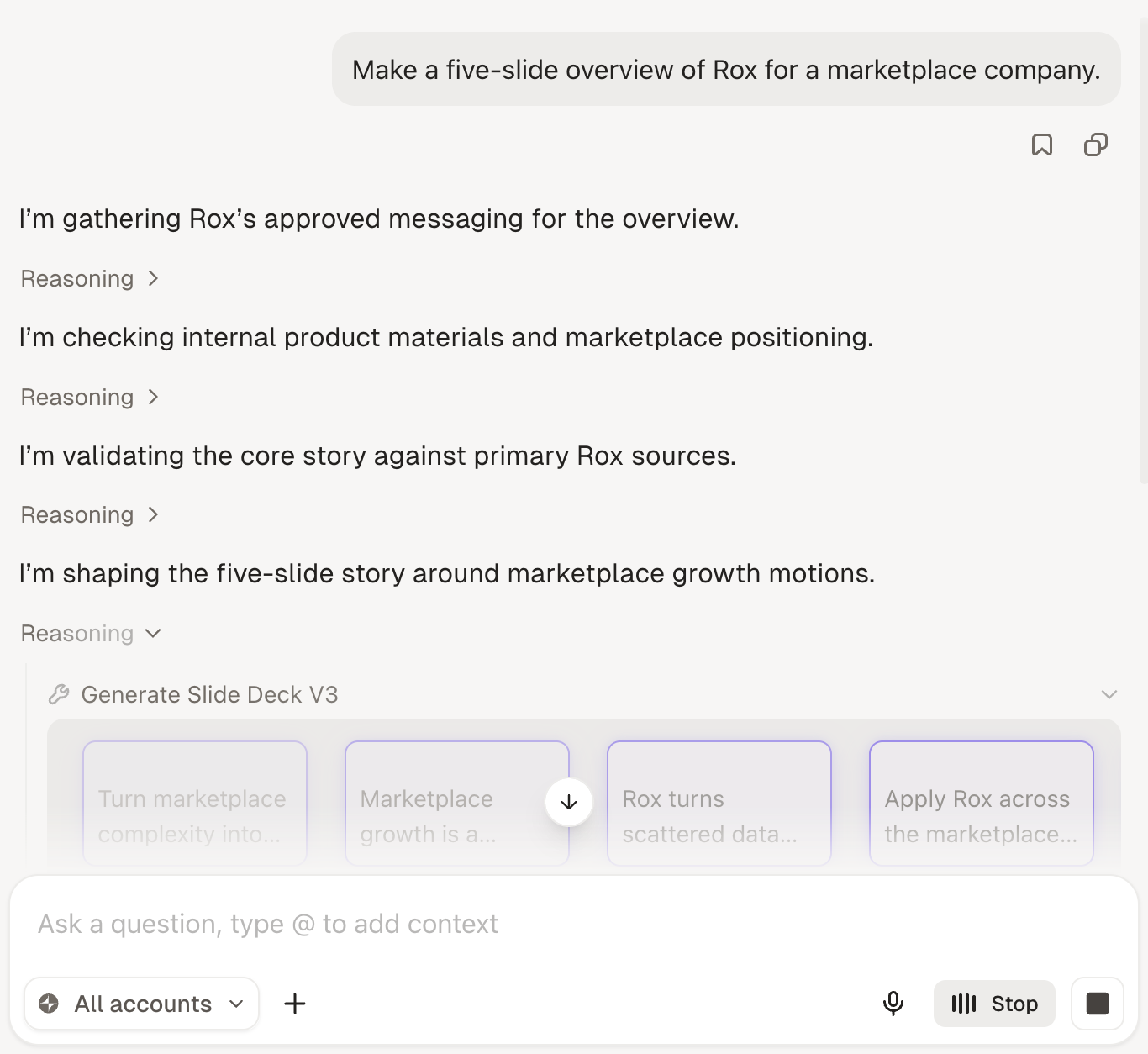
The waveform button is replaced by Stop while the voice session is active. Click Stop at any time to end the session.
What you can do
Voice Mode supports the same research, outreach, pipeline management, content generation, and other workflows available in Chat. See Ways to Use Chat for examples.
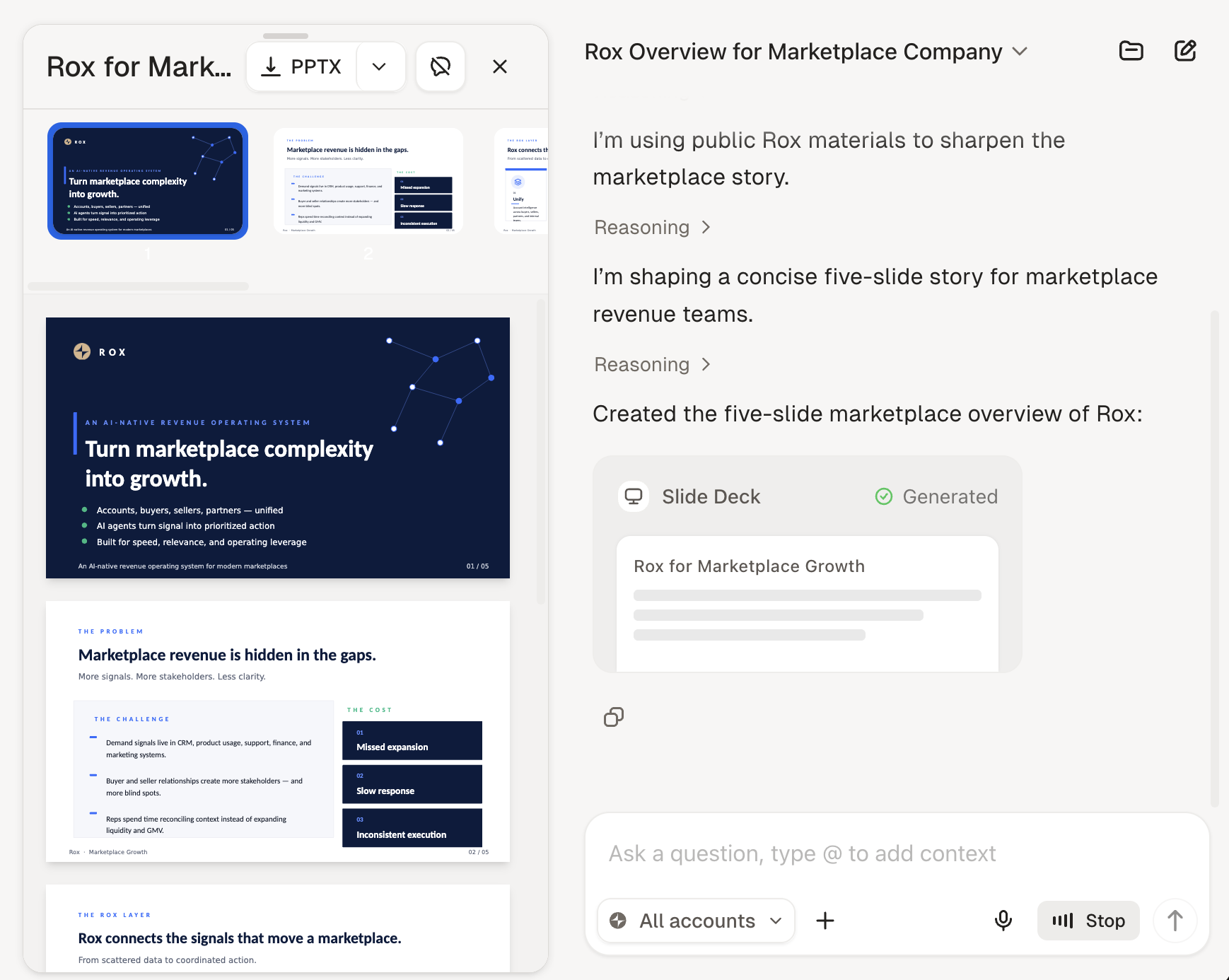
Rox speaks concise updates and answers. Detailed results, generated files, questions that need your input, and other visual outputs remain available in the chat panel.

Control an active request
You can keep talking naturally while Rox works:
Say "stop", "cancel", or "never mind" to cancel the current request while keeping Voice Mode active.
Correct or replace your request by saying what you meant instead.
Ask for progress while a request is running.
Click Stop to leave Voice Mode completely.
Only one Rox request runs at a time. If you want to replace a request that is still running, cancel or correct it before starting the next one.

Troubleshooting
If Rox cannot hear you, check that microphone access is enabled for Rox in your browser or desktop app, then start Voice Mode again. Voice Mode is unavailable while Chat is already generating a response, while a meeting recording is active, or when your workspace has no remaining agent actions.
Last updated