> For the complete documentation index, see [llms.txt](https://docs.rox.com/development/llms.txt). Markdown versions of documentation pages are available by appending `.md` to page URLs; this page is available as [Markdown](https://docs.rox.com/development/product/integrations/microsoft-teams-app.md).
# Microsoft Teams App
## Microsoft Teams App Org-Wide Integration
You can connect Microsoft Teams App org-wide so that all existing Rox users are automatically matched to users in your Microsoft 365 tenant.
This integration is configured and controlled by a Microsoft 365 / Teams administrator.
### Notes
* This feature connects all existing Rox users to all matching users in your Microsoft 365 tenant using email as the key.
* Rox uses the email address as the key. If a user has a different email in Rox vs. Microsoft 365/Teams (for example, `user@company.com` in Rox and `user@subsidiary.company.com` in Microsoft 365), org-wide matching will not connect their account.
* This feature is only available to enterprise customers. If you are an admin for your org, please contact Rox Support or your Rox account team to get this feature enabled.
### Prerequisites for admins
To configure the org-wide Teams integration, you must:
* Have a Microsoft Entra (Azure AD) role such as **Global Administrator** or **Teams Administrator** with permission to manage apps and grant tenant-wide consent.
* Have the Rox enterprise environment set up and be granted admin privileges inside Rox.
### Step 1: Approve the Rox app in Teams
1. Go to the [**Microsoft Teams admin center**](https://admin.teams.microsoft.com/) and sign in with your admin account.
2. In the left navigation, select **Teams apps -> Manage apps**.
3. Open the Rox app listing in Microsoft Teams using this link: [Rox in Microsoft Teams](https://teams.cloud.microsoft/l/app/3971c498-7017-4f5a-a4bb-d57ac118875a?source=app-details-dialog).
4. Confirm the app status is **Allowed** for your organization. If it is blocked, change the status to **Allowed**.
5. Open the **Users and groups** tab for the Rox app.
6. Under **Availability**, make the app available to **Everyone** or **Specific users or groups**
7. Under **Installs**, make sure the app is installed for **Everyone** or **Specific users or groups**.
8. Verify this by installing the app in [Teams](https://teams.cloud.microsoft/l/app/3971c498-7017-4f5a-a4bb-d57ac118875a?source=app-details-dialog). After installation you should receive a welcome message from the app.
If your org only allows specific apps, you may also need to update app permission policies or app setup policies to make Rox available to the users or groups you want. These app-level **Users and groups** settings should be configured so Rox is both available to everyone and installed for everyone.
### Step 2: Enable org-wide integration in Rox (including admin consent)
1. In Rox, go to **Settings.**
2. Open the **Integrations** section and locate **Microsoft Teams App**.
3. Click the **Microsoft Teams App settings** icon to open the org-wide configuration screen.
4. Click **Connect Microsoft Teams App**. Rox will check whether the app is available in your tenant.
5. Click **Grant admin consent**. Rox will redirect you to a Microsoft Entra admin consent page for the Rox enterprise app.
6. Sign in with a Microsoft Entra admin account, review the requested Microsoft Graph permissions, and click **Accept**.
7. After consent, you will be redirected back to Rox. Rox will verify the consent and enable the org-wide integration.
8. Once validation passes, Rox will begin connecting Rox users to matching Microsoft 365 identities based on email.
At this point, your organization has a tenant-wide integration between Rox and Microsoft Teams, and users can interact with Rox in Teams where the app is available to them.
### How it works
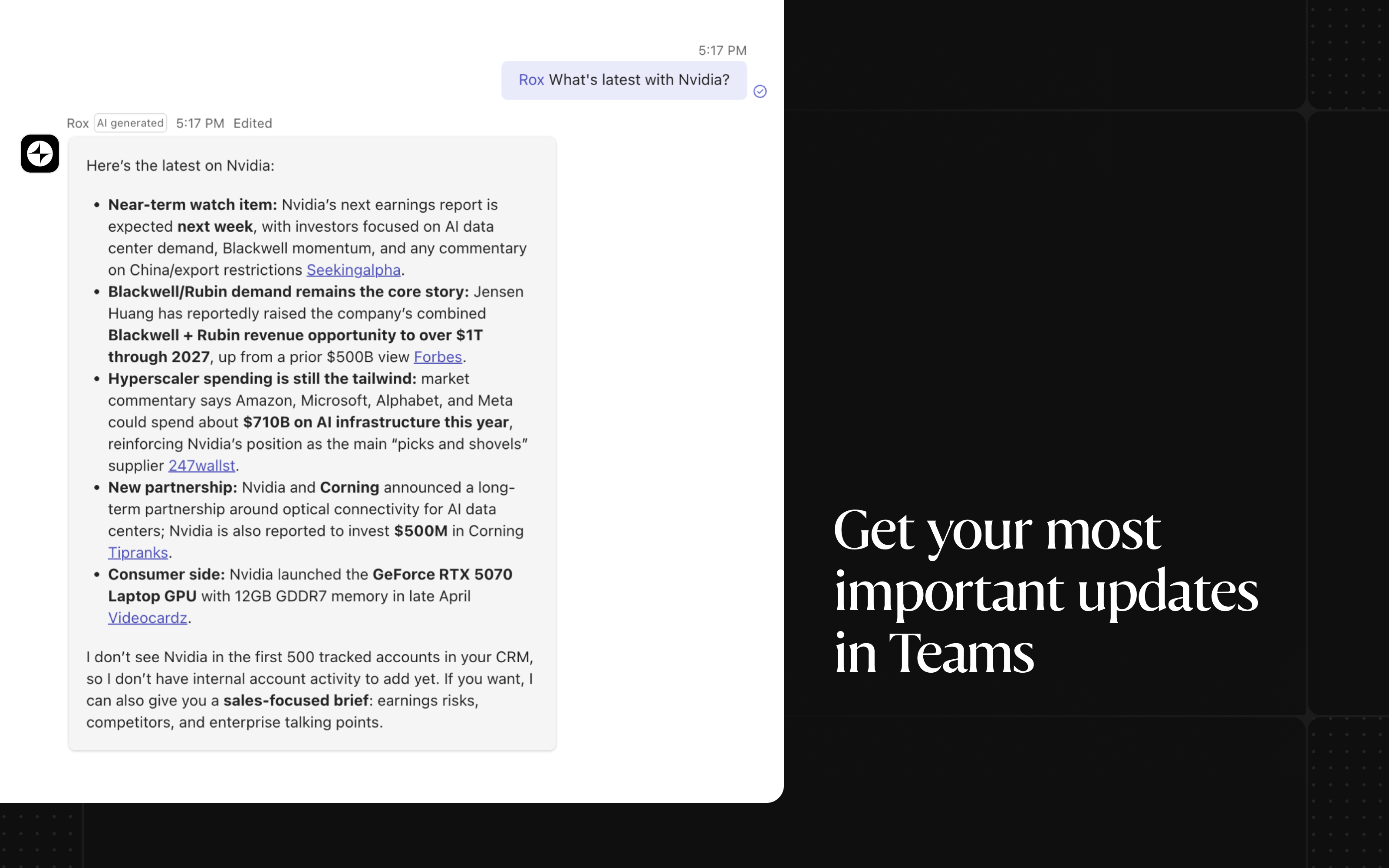
Start with Rox in any Microsoft Teams chat or channel.
* In **channels**, users need to tag **@Rox** with a question, for example, `@Rox what changed at Acme this week?`
* In **direct chats (DMs)**, users can message Rox directly without tagging **@Rox**.
When a user starts a conversation, Rox treats that message as the start of a working thread. Follow-up replies in the same thread or chat are handled as one continuous conversation, so users can refine questions without repeating context.
### Proactive notifications from Rox workflows
Users can also receive proactive notifications in Microsoft Teams from workflows configured in Rox.
When adding actions in a Rox workflow:
1. Under **External Apps**, select **Microsoft Teams**.
2. Select the relevant **Team** and **Channel**.
3. Run a **test** action to confirm everything works correctly.
If the target channel does not appear in the dropdown, make sure the **Rox** app has been added to that channel first. A simple way to do this is to send a message in that channel using the Rox app so Teams recognizes it there.
### Using private data sources with Rox bot in Microsoft Teams channels
By default, Rox does not include private data sources such as notes, meeting transcripts, and emails when responding to questions asked in Microsoft Teams channels.
These sources remain available when interacting with Rox through direct chats, the Agents view, or the Rox web app.
To enable private data sources for Microsoft Teams channels:
1. Open the Rox Integrations page:\
2. Open **Microsoft Teams App** Integration Settings (gear icon).
3. Navigate to the **Private Data Sources** tab.
4. Select the data sources you want Rox to access in Microsoft Teams channels.
5. Click **Save**.
### Disconnecting org-wide Teams integration
If you need to disable the integration:
From Rox:
* Go to **Settings -> Integrations -> Microsoft Teams App** and click **Disconnect**.
From Microsoft 365 / Teams:
* In the **Teams admin center**, you can block or remove the Rox app under **Teams apps -> Manage apps**.
* In **Microsoft Entra admin center**, you can revoke admin consent or delete the Rox enterprise app registration.
Disconnecting stops Rox from using the tenant-level connection to Microsoft Teams, though existing Rox account data remains governed by your Rox retention and deletion policies.