> For the complete documentation index, see [llms.txt](https://docs.rox.com/development/llms.txt). Markdown versions of documentation pages are available by appending `.md` to page URLs; this page is available as [Markdown](https://docs.rox.com/development/user-guide/sequences/create-and-run-a-sequence.md).
# Create and Run a Sequence
Configure outreach steps, add contacts, and control when messages send.
A sequence combines your outreach steps, contact list, and sending configuration. Start with a small set of contacts so you can review the content and settings before expanding it.
### Before you start
* Connect a Gmail or Outlook mailbox. See **Multiple Mailboxes** for connection and selection instructions.
* Review the mailbox's daily sending limit, sending window, and timezone.
* Prepare a contact list in **People**.
* Gather any research and documents you want Rox to use when generating emails.
### 1. Create your sequence
Open **Sequences** and select **Generate New Sequence**.
Choose a starting point:
| Option | When to use it |
| -------------------------- | ---------------------------------------------------------------------- |
| Build your sequence | You want to define the steps and instructions yourself. |
| Clone an existing sequence | You want to reuse an existing sequence's structure. |
| One-click quick start | You want a three-step AI-generated starting point that you can adjust. |
### 2. Configure the steps
Add the steps you want contacts to progress through and set the timing between them. For email steps, choose whether to use AI-generated content or your own copy. Review whether each email step should send automatically or require a manual action.
LinkedIn and phone call steps provide tasks to complete as part of your outreach. LinkedIn connection requests and messages require manual action.
Review the entire sequence before adding contacts: the order of steps, the delays between them, and where you want a person to take over.
### 3. Configure AI-generated messages
Open **Agent Tuning** to provide the instructions and context for AI-generated emails. Manually written email steps use the copy you provide.
**Sequence-level instructions** define the message and writing style across the sequence. Explain who you are contacting, the problem you solve, which evidence matters, and what action you want the recipient to take.
For example:
> Write to finance leaders at companies expanding internationally. Use the selected research to identify a relevant expansion initiative. Explain how our product supports financial reporting across markets. Keep each email under 120 words and end with one question. Do not invent results or customer references.
Use step-level generation instructions to give an individual email a specific purpose. For example, the first email might introduce a relevant account initiative, while a later email offers a supporting customer example. Review the sequence-wide instructions alongside each step's instructions so the requested message is consistent.
Add supporting context:
| Setting | What to provide |
| ----------------------- | ------------------------------------------------------------------------------------- |
| Clever Columns Research | Select relevant account or people research for personalization. |
| Documents | Add product information, case studies, or other material that explains your offering. |
| Target Language | Choose the language for generated emails. |
Where available within an AI email step, **Personalize with contact's socials** adds contact-specific context from LinkedIn. Describe which details are useful to the message rather than requesting personalization for its own sake.
Select **Save Changes**. Review generated messages to check that the research supports the claims and that the copy follows your instructions.
### 4. Add contacts
Select **Add Contacts** and choose contacts from your lists in **People**.
Rox verifies email addresses when contacts are added and can enrich contacts that do not have an email address. If a contact displays **Email verification failed**, review the address before sending. You can correct it or use **Re-enrich contacts** to look for updated information. Re-enrichment may return the same result, particularly if the contact was just added.
An indicator identifies contacts active in another sequence, including a teammate's sequence. Check the indicated sequence and owner before including those contacts in more outreach.
### 5. Review contacts and messages
Open **Contacts** and select a contact to inspect their side panel:
* **Content** shows the email thread and generated messages.
* **Contact** shows the person's details and activity.
* **Account** shows account information.
Use **Regenerate** when you need to generate messages again, such as after changing agent instructions. Review the result before sending.
Contact statuses help you identify the next action:
| Status | Meaning |
| ------------------- | -------------------------------------------------------- |
| Not Started | The contact has been added but outreach has not started. |
| Started | At least one email has been sent. |
| Paused | Outreach is on hold for this contact. |
| Replied | A reply has been recorded. |
| Interested | The contact has been marked as interested. |
| Finished – No Reply | The sequence finished without a reply. |
| Needs Attention | The contact requires review. |
You can also mark a contact as **Replied** after a response through another channel, such as a phone call or LinkedIn message.
### 6. Start sending
Select **Run** to activate the sequence. Review the automatic-send controls for each step. The sequence-level control updates individual step toggles; you can then adjust individual steps to leave a manual checkpoint.
An automatic email can enter the sending queue after generation completes. Its actual send time depends on the sending window, daily limit, and emails already queued.
Before leaving a sequence running, check:
* The selected sending mailbox is correct and connected.
* Sending days, time windows, and timezone match your intended schedule.
* Daily limits are appropriate for the mailbox and expected volume.
* Automatic steps and manual checkpoints are configured as intended.
* Reply drafting, automatic reply sending, and approval before scheduling meetings match the level of automation you want.
**Set your sending schedule**
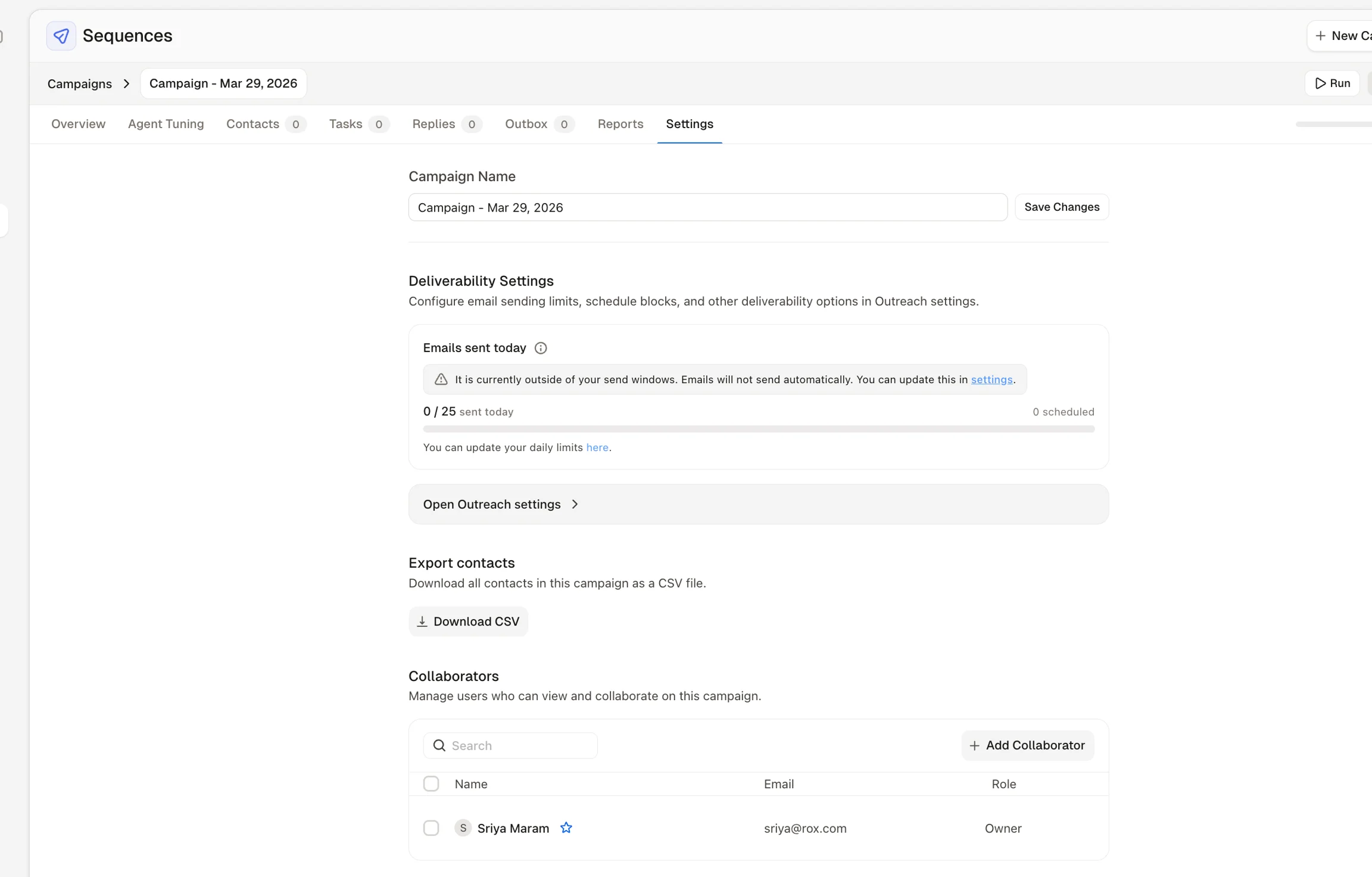
Review the sending days, time windows, and timezone in your deliverability settings. For each day, you can skip sending, choose a custom window, or allow sending all day. Review the **Skip holidays** option if you want to exclude public holidays. Emails queued outside an eligible sending window wait until sending is allowed again, subject to sending limits and queue rules.
### 7. Complete manual tasks and review replies
Use **Tasks** to find due and overdue manual email, LinkedIn, and phone call tasks. Automatic email steps do not appear as tasks for you to complete.
Use **Replies** to review inbound responses. See **Reply Handling and Meeting Scheduling** to configure automated replies and calendar booking.
### Pause outreach
Use **Pause outreach for all contacts** to stop automatically scheduled sequence steps. To pause one person, select the contact and use **Pause**. Use **Unpause** when you are ready to resume outreach to that contact.
> Pausing automatic outreach does not cancel emails you have already manually queued for sending. Check **Outbox → Scheduled for Sending** when you need to review pending sends.
Mark a contact as **Unsubscribed** when they request no further outreach. The existing unsubscribe status also applies if the contact is added to a future sequence.
For outreach paused because of an out-of-office reply, you can enable **Automatic unpause** under **Agent Tuning → Replies & meetings**. See [**Reply Handling and Meeting Scheduling**](https://www.rox.com/docs?page=user-guide/sequences/reply-handling-and-meeting-scheduling) **→ Configure out-of-office handling** for details.
### Check the outbox
The **Outbox** separates **Sent** emails from **Scheduled for Sending**. Scheduled emails can include both automatic steps and emails you manually queued in bulk. Selecting a bulk send does not mean all messages leave immediately; sending controls still affect the queue.
You can inspect the outbox for one sequence or across all sequences from the home page.
### Review performance
Where enabled, open **Reports** from the Sequences home page or an individual sequence. Review emails sent, opens, replies, and contacts marked interested, with available rep, sequence, and date filters.
Open tracking can include automated security scans and your own views of sent messages. Treat opens as a directional signal and review replies and interested contacts alongside them. See [**Understanding email open tracking**](https://docs.rox.com/development/~/revisions/fqBLTRWAnvLFy7GqWRLQ/product/sequences/understanding-email-open-tracking) for details.
### Troubleshooting
| Issue | What to check |
| ------------------------------------------- | ----------------------------------------------------------------------------------------------------------------------------------------------------------------------------- |
| Automatic emails are not sending | Confirm the sequence and step are enabled, generation has completed, the mailbox is connected, and the sending window is open. Review the daily limit and any warning badges. |
| A contact needs review | Open the contact in **Needs Attention** and read the reported issue before retrying. |
| Contact details are outdated | Review the address or use **Re-enrich contacts**. |
| Generated messages are off target | Review the selected research, documents, and instructions, then regenerate the affected contact's content. |
| A scheduled email is no longer in the queue | Check **Needs Attention** and the contact's content before regenerating or re-queuing. |
| Reports are unavailable | Ask your Rox team whether reporting is enabled for your organization. |